I built my own accessible voice assistant — not just another chatbot
Published on September 14, 2026 · 6 min read
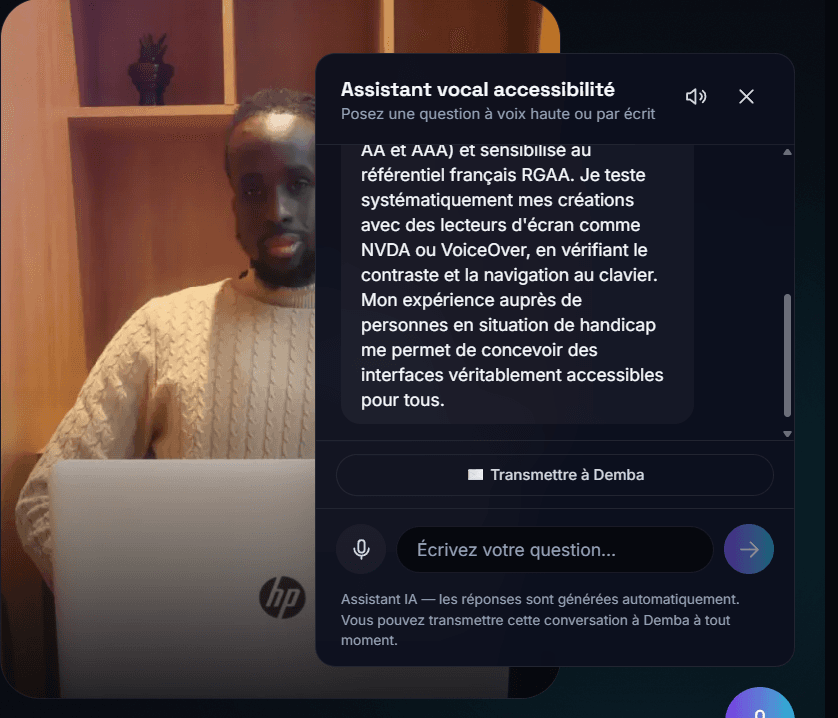
In the bottom-right corner of this site, there's a small button with a microphone icon. It isn't a generic chatbot bolted on to look modern: it's an assistant I designed and built myself, with one non-negotiable constraint from day one — it had to be genuinely accessible, not just look accessible.
Why a voice assistant instead of a plain chat
Speech recognition and speech synthesis are themselves accessibility tools: they let someone who can't or doesn't want to type ask a question out loud and get an answer read back to them. This was a chance to show, on my own site, a real building block of what I can build for a client who needs exactly that.
What actually makes it accessible
A chatbot that's "accessible" on paper but unusable by keyboard isn't rare. I wanted to avoid every one of these traps:
- Full keyboard navigation, with focus trapped inside the panel while it's open (no accidentally tabbing "behind" it)
- Instant close with Escape, like any standard dialog
- A conversation area marked aria-live, so a screen reader automatically announces new replies without the user hunting for where they appeared
- Every animation respects prefers-reduced-motion and turns off for people sensitive to motion
- A mute button, and a text field always available for people who'd rather type than speak
The real technical challenges
Browser speech recognition (the Web Speech API) is far from consistent across browsers, and its default behavior isn't designed with accessibility in mind: as soon as it detects the end of a sentence, it fires the result immediately, with no chance for the user to review or correct it.
That's exactly the kind of detail you only catch by really testing the tool in real conditions — and it's a bug I fixed recently: now, a first tap captures speech into the text field, and you have to explicitly confirm to send it. A small detail, but one that changes everything for someone who needs time to formulate their question.
What it really demonstrates
Anyone can write "accessible" on a résumé. What I wanted was a verifiable example: a tool that genuinely works by keyboard, with a screen reader, with or without a mouse, with or without voice. If you want to try it yourself, the button is right at the bottom-right of this page.
Written by Demba Mbow
Digital creator & UI/UX designer, WCAG certified
Was this article useful?
Let's talk about your project